
Create and Use Scheduled Actions
This guide provides step-by-step instructions for creating and using Scheduled Actions in OpenObserve.
Availability
This feature is available in Enterprise Edition and Cloud. Not available in Open Source.
Scheduled Actions in OpenObserve allow you to execute custom Python scripts at a specific time, either once or on a recurring schedule defined using a cron expression.
Scheduled Actions run based on time, making them suitable for:
- Routine or periodic tasks. For instance, hourly, daily, weekly.
- Background jobs that interact with OpenObserve. For instance, ingest logs.
The following example demonstrates a periodic log pusher.
The action script:
- Establishes a connection to OpenObserve using environment variables.
- Pushes a test log event to the
defaultorganization anddefaultstream.- Runs at a scheduled time defined by the cron expression.
Create a Scheduled Action
Prerequisites
Before you create a Scheduled Action, ensure the following are in place:
-
Service Account with Necessary Permissions
-
Choose an existing service account or create a new one, depending on your needs.
-
Ensure the service account is associated with a role that grants permission to perform the specific actions required by your script. The role must include:
- Actions:
GETpermission (mandatory) - Other permissions based on your script's requirements. In this example, the script interacts with log streams, the role must include permission to access and manage Streams.
- Actions:
-
-
Python Script Requirements
-
Must contain a
main()function. -
Important:
main()must not accept any arguments. Scheduled Actions do not take input at runtime. -
Use environment variables to fetch values such as:
- Base URL of OpenObserve
- Authentication token
- Target org and stream
Note:
ORIGIN_CLUSTER_URLandORIGIN_CLUSTER_TOKENare available to all actions by default. You do not need to manually define them during the Scheduled Action configuration. In themain.pyscript, user can directly call, as shown below:os.environ.get("ORIGIN_CLUSTER_URL") os.environ.get("ORIGIN_CLUSTER_TOKEN")Note that you must use the base64 encoded version of the cluster token.
Where to Get the Base64 Token
To find the base64-encoded version ofusername:password:- From the left navigation menu, select Data Sources.
- Go to Custom > OTEL Collector.
- Locate the section for
Authorization: Basic <token>The value afterBasicis your base64 token.
However, other variables (like
OPENOBSERVE_ORG,OPENOBSERVE_STREAM) are not provided by default.
If the script needs them, you can define them in the script or in the Environment Variables section when creating or editing an Action. -
The following main.py builds a connection to OpenObserve, then pushes a test log to the default organization and default stream.
import os
import sys
import json
import logging
import requests
import base64
from typing import Dict, Any, Optional, Tuple

# Configure logging
logging.basicConfig(
    level=logging.INFO,
    format='%(asctime)s - %(name)s - %(levelname)s - %(message)s'
)

logger = logging.getLogger(__name__)
class OpenObserveClient:
    def __init__(self):
        # Get values from environment variables with defaults
        self.base_url = os.environ.get("ORIGIN_CLUSTER_URL", "http://localhost:5080")
        self.token = os.environ.get("ORIGIN_CLUSTER_TOKEN", "dXNlcm5hbWU6cGFzc3dvcmQ=") # Here, "dXNlcm5hbWU6cGFzc3dvcmQ=" is the base64-encoded version of "username:password". See the "Where to Get the Base64 Token" section above.
        self.org = os.environ.get("OPENOBSERVE_ORG")
        self.stream = os.environ.get("OPENOBSERVE_STREAM")

        # Ensure base_url doesn't end with a slash
        self.base_url = self.base_url.rstrip('/')

        # Parse the token to get username and password
        try:
            # Decode base64 token
            decoded = base64.b64decode(self.token).decode('utf-8')
            self.username, self.password = decoded.split(':', 1)
            self.auth = (self.username, self.password)
            logger.info(f"Initialized OpenObserve client for org: {self.org}, stream: {self.stream}")
        except Exception as e:
            error_msg = f"Failed to parse base64 encoded token: {str(e)}"
            logger.error(error_msg)
            raise ValueError(error_msg)

    def ingest_data(self, data: Dict[str, Any]) -> bool:
        """
        Ingest data to OpenObserve stream
        Args:
            data: Dictionary containing the data to be ingested
        Returns:
            bool: True if ingestion was successful, False otherwise
        """
        try:
            # Endpoint for ingesting JSON data
            url = f"{self.base_url}/api/{self.org}/{self.stream}/_json"

            # Make POST request to ingest data
            response = requests.post(
                url,
                json=data,
                auth=self.auth,
                headers={"Content-Type": "application/json"}
            )

            # Check if request was successful
            if response.status_code in (200, 201, 204):
                logger.info(f"Successfully ingested data to {self.stream}")
                return True
            else:
                logger.error(f"Failed to ingest data: {response.status_code} - {response.text}")
                return False
        except Exception as e:
            logger.error(f"Error while ingesting data: {str(e)}")
            return False

    def ingest_batch(self, data_list: list) -> bool:

        """
        Ingest a batch of data to OpenObserve stream
        Args:
            data_list: List of dictionaries containing data to be ingested
        Returns:
            bool: True if ingestion was successful, False otherwise
        """
        try:
            # Endpoint for ingesting multiple records
            url = f"{self.base_url}/api/{self.org}/{self.stream}/_json"

            # Make POST request to ingest batch data
            response = requests.post(
                url,
                json=data_list,
                auth=self.auth,
                headers={"Content-Type": "application/json"}
            )

            # Check if request was successful
            if response.status_code in (200, 201, 204):
                logger.info(f"Successfully ingested {len(data_list)} records to {self.stream}")
                return True
            else:
                logger.error(f"Failed to ingest batch data: {response.status_code} - {response.text}")
                return False
        except Exception as e:
            logger.error(f"Error while ingesting batch data: {str(e)}")
            return False
def main():
    try:
        # Initialize OpenObserve client
        client = OpenObserveClient()

        # Sample data to ingest
        sample_data = {
            "message": "Hello, world!",
            "level": "info",
            "timestamp": "2023-01-01T00:00:00Z",
            "service": "sample-service",
            "metadata": {
                "hostname": "sample-host",
                "version": "1.0.0"
            }
        }

        # Ingest single data point
        success = client.ingest_data(sample_data)
        if success:
            # Sample batch data
            batch_data = [
                {"message": "Line 1", "level": "info", "service": "sample-service"},
                {"message": "Line 2", "level": "info", "service": "sample-service"},
                {"message": "Line 3", "level": "info", "service": "sample-service"},
                {"message": "Line 4", "level": "info", "service": "sample-service"},
                {"message": "Line 5", "level": "info", "service": "sample-service"},
                {"message": "Line 6", "level": "info", "service": "sample-service"}
            ]

            # Ingest batch data
            client.ingest_batch(batch_data)
    except Exception as e:
        logger.error(f"Error in main function: {str(e)}")

if __name__ == "__main__":
    main()
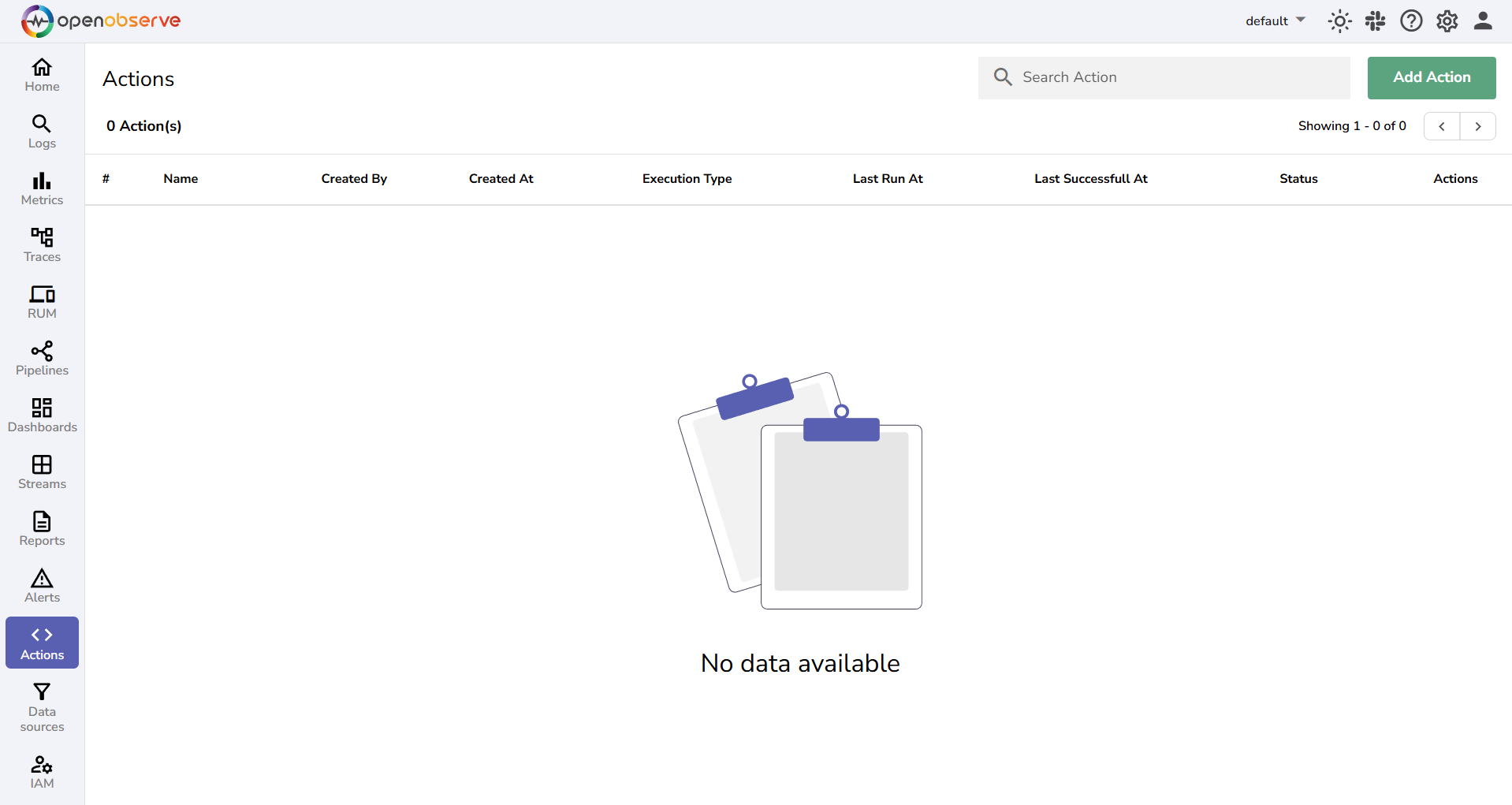
Step 1: Go to Actions
- From the left navigation menu, select Actions.
- Click Add Action.
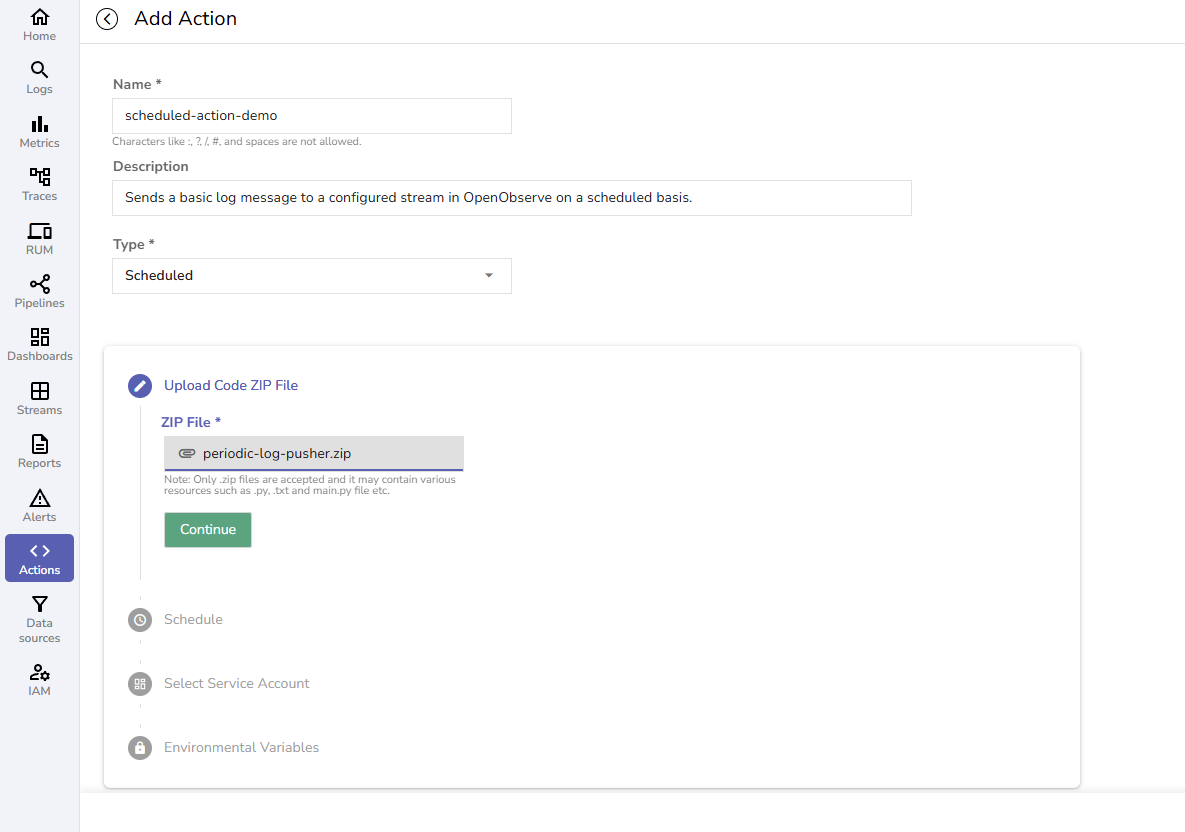
Step 2: Enter Name, Description, and Type
- Name: Enter a name for the action. Example: scheduled_log_sender.
- Description: Provide a description for the action. Example: Sends a test log message on a schedule.
- Type: Select Scheduled.
Step 3: Upload the Action Script in .zip Format
Ensure that the zip file has main.py, optional helper functions, and the pyproject.toml file or dependencies folder with necessary dependencies. Learn more about declaring dependencies when creating Action script in Python.
Step 4: Set the Schedule
Choose either:
- Once: Script runs one time only
- Cron Job: Recurring runs based on a cron expression
Let's say, you want the action runner to execute this action at 12
PM on the 1st day of every month. In this case, select Cron Job and enter the cron expression as:30 12 1 * *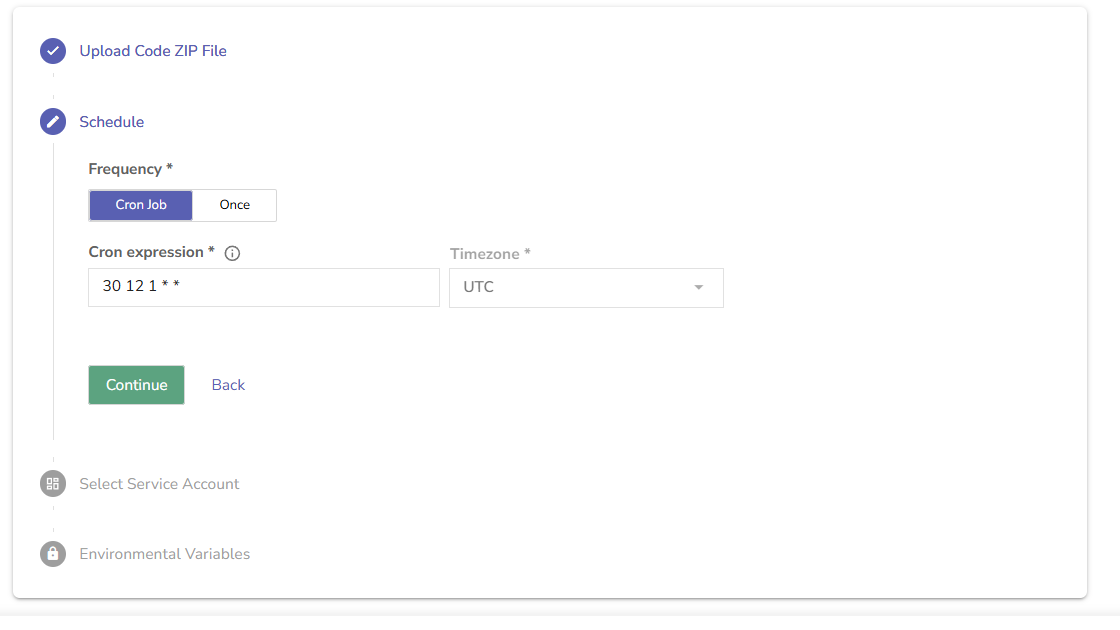
Other Cron Expression Examples:
- 0 * * * *: Every hour at minute 0
- 10 7 * * *: At 07 AM UTC every day
- 30 2 * * 1: Every Monday at 02 UTC
Important:
- All cron jobs run in UTC timezone. Be sure to convert from your local time if needed.
- Once a Scheduled Action is saved, you cannot change the schedule later. Double-check your schedule before submitting.
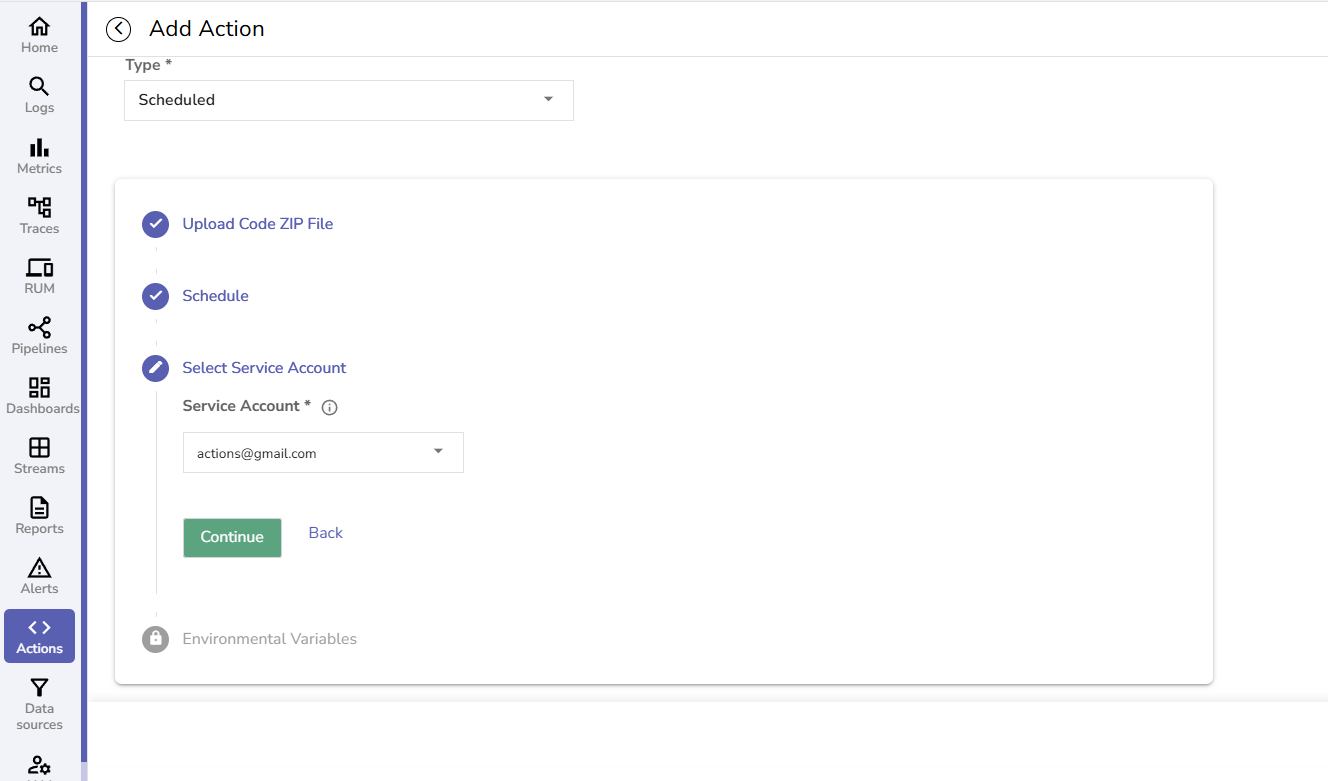
Step 5: Select a Service Account
Ensure that you select the service account with appropriate permission.
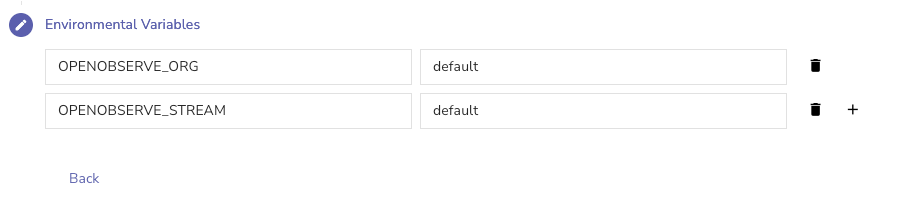
Step 6: Add Environment Variables (optional)
You can use environment variables to pass information into your script, without writing it directly in the Python script. Learn how to use environment variables in Actions.
For the periodic log pusher action script, we can use the environment variables and values while configuring the actions.
def __init__(self):
        # Get values from environment variables with defaults
        self.base_url = os.environ.get("ORIGIN_CLUSTER_URL")
        self.token = os.environ.get("ORIGIN_CLUSTER_TOKEN”)
        self.org = os.environ.get("OPENOBSERVE_ORG")
        self.stream = os.environ.get("OPENOBSERVE_STREAM")
Since ORIGIN_CLUSTER_URL and ORIGIN_CLUSTER_TOKEN are available by default, define other variables in the Environment Variables section.
Step 7: Save the Scheduled Action
Click Save to complete the configuration. The Scheduled Action is now ready for execution.
After the scheduled action gets saved, it remains Ready until the scheduled time. After the execution is complete the status shows Completed. If the execution fails, the status shows Errored.
Result
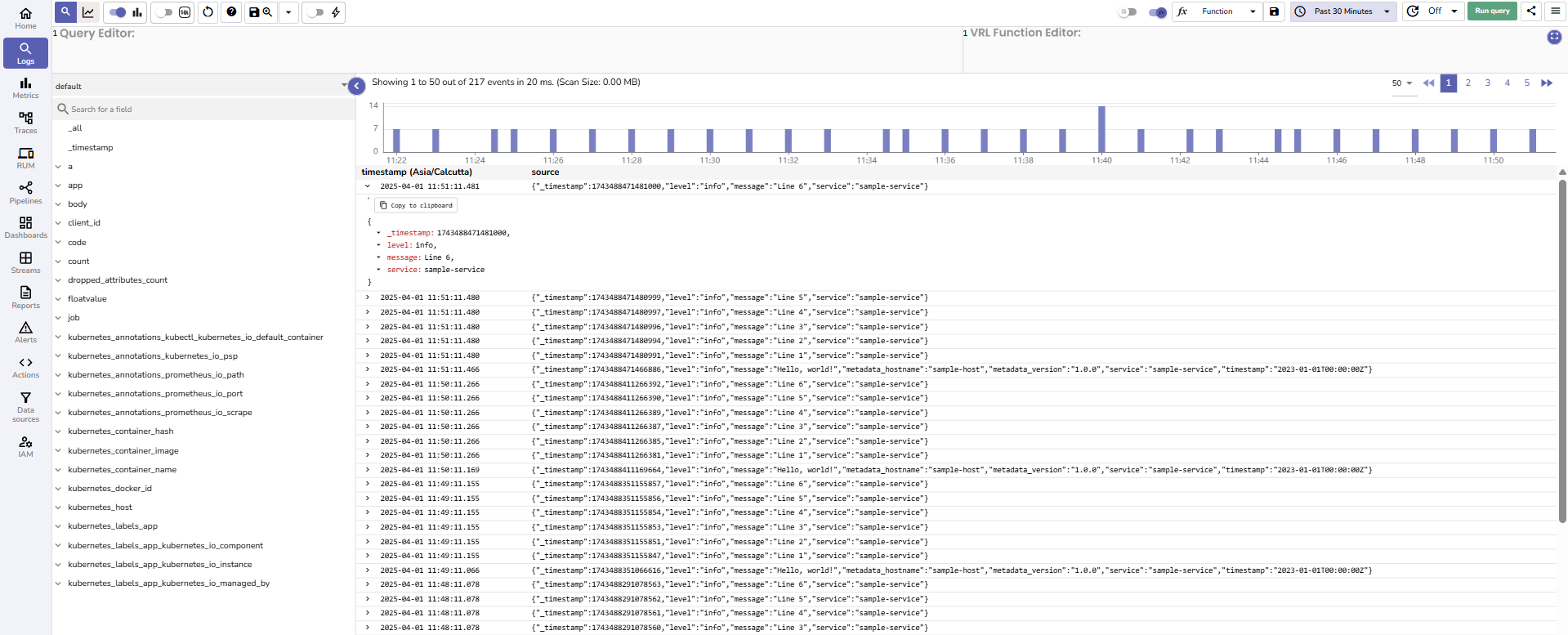
In the above example, when the schedule hits and the script executes successfully, it connects to OpenObserve using the environment variables and push a log at the scheduled time. The output looks like this:
{
  "message": "Scheduled log from OpenObserve action",
  "level": "info",
  "timestamp": "2025-01-01T00:00:00Z",
  "service": "scheduled-action"
}
Last updated on
Create and Use Real-time Actions
Create real-time Actions in OpenObserve to automate workflows with Python scripts triggered by log events or alerts—manual or automated scripts are supported.
Declare Python Dependencies in Actions
Learn how to declare Python dependencies in OpenObserve Actions using pyproject.toml or a dependencies folder to support external libraries.