
Integration with Google Cloud Logs via Pub/Sub
This guide explains how to send Google Cloud logs into OpenObserve by using Log Router Sink to route logs into Google Cloud Pub/Sub, and then pushing them directly to OpenObserve via a Pub/Sub subscription.
Overview
The integration flow is: Google Cloud Logs → Log Router Sink → Pub/Sub → OpenObserve. By using Pub/Sub with a push subscription, GCP automatically delivers logs to OpenObserve in real time. This enables centralized observability across your cloud infrastructure.
Steps to Integrate
## Prerequisites
- OpenObserve account (Cloud or Self-Hosted)
- A Google Cloud Platform (GCP) project with necessary IAM permissions
- Basic knowledge of GCP Console or
gcloudCLI
Step 1: Get OpenObserve Ingestion URL and API Key
- In OpenObserve: go to Data Sources → Recommended → GCP
- Copy the ingestion URL and API Key
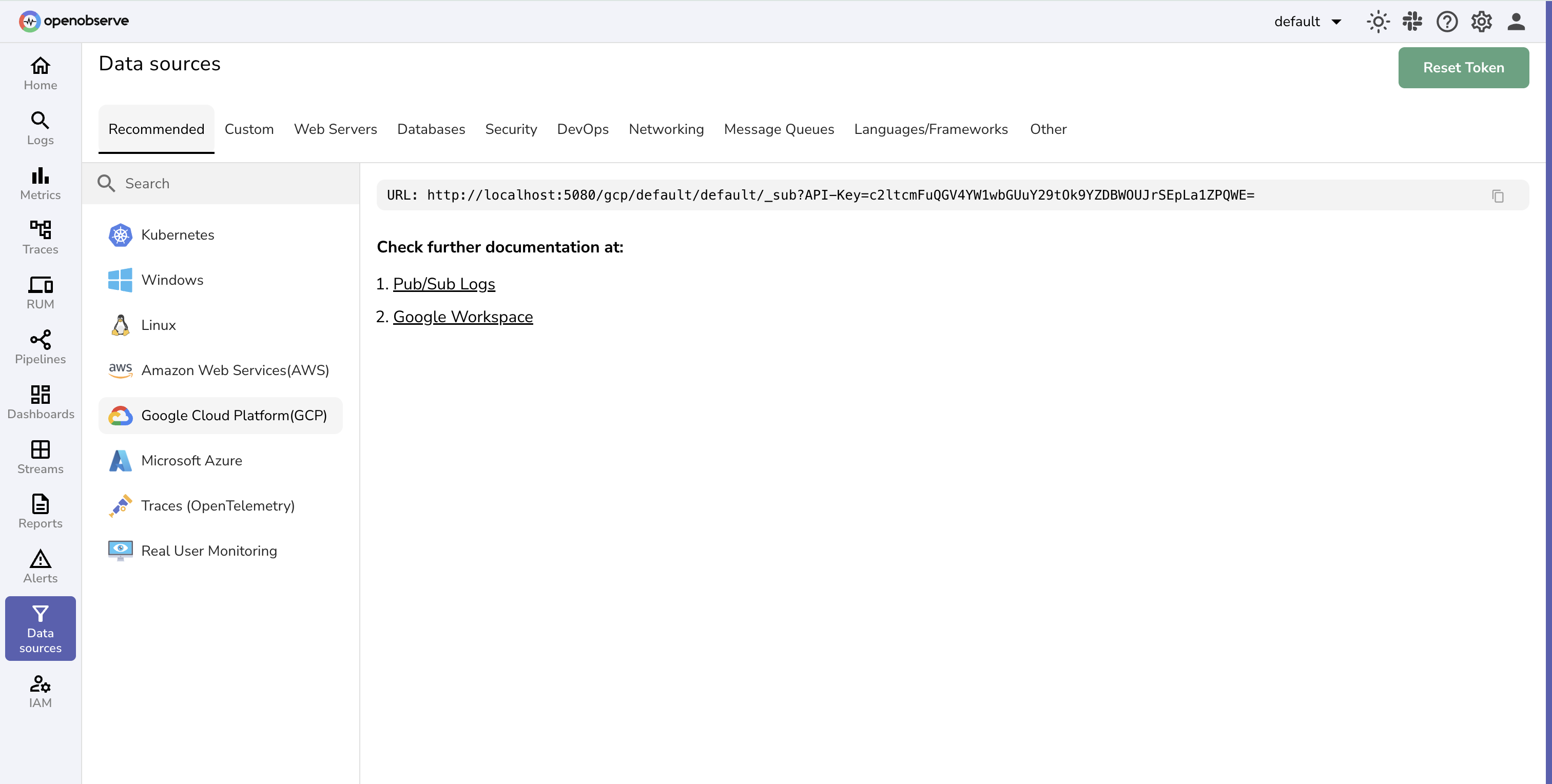
Example format:
https://api.openobserve.ai/gcp/<org>/<stream>/_sub?API-Key=<YOUR_API_KEY>Step 2: Create a Pub/Sub Topic
Using GCP Console
- Navigate to Pub/Sub → Topics in GCP Console
- Click Create Topic
- Enter a name (e.g.,
my-log-topic) and Click Create
Using gcloud CLI
gcloud pubsub topics create my-log-topicStep 3: Create a Push Subscription to OpenObserve
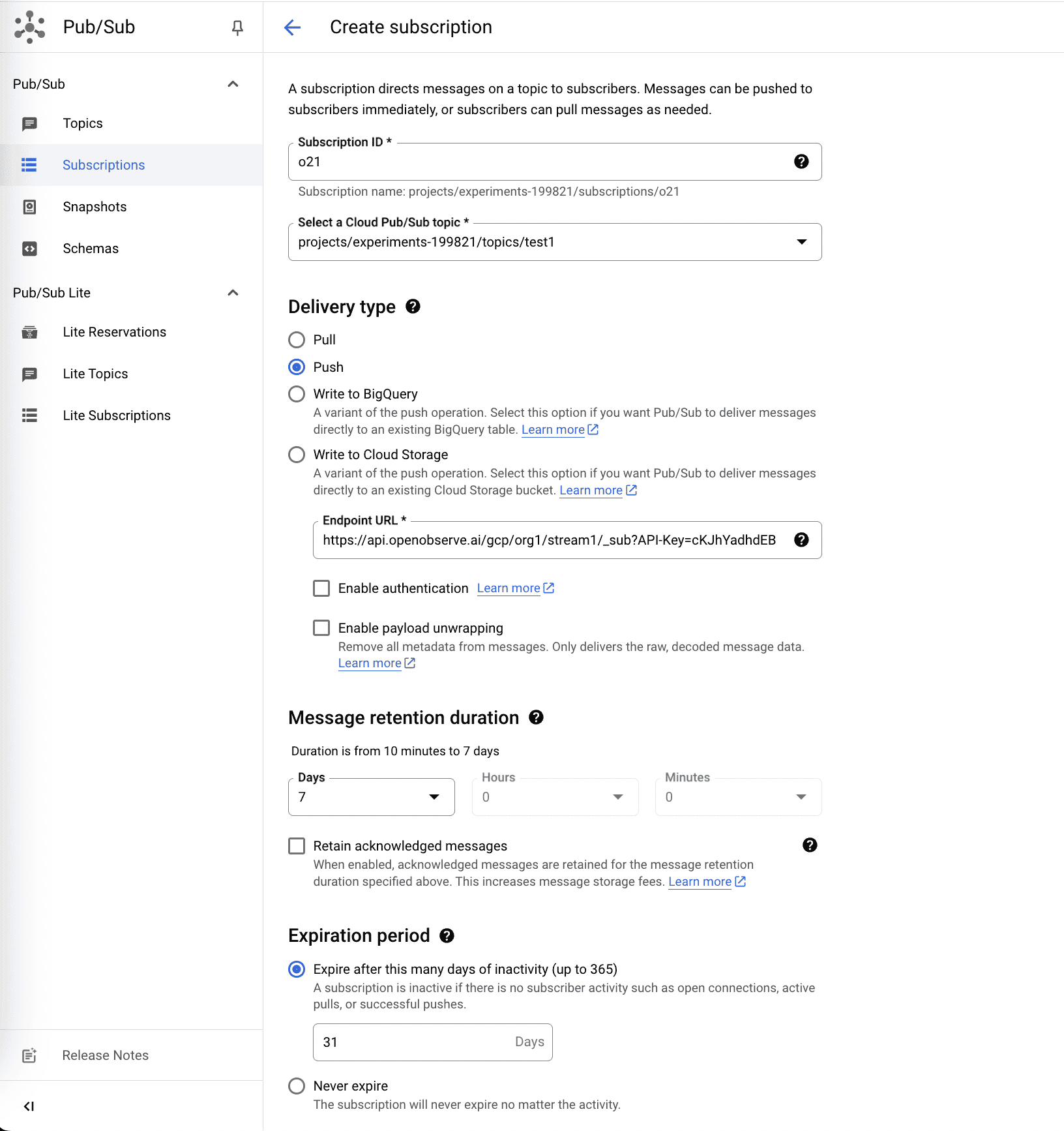
Using GCP Console
- Go to Pub/Sub → Click on the topic you created.
- Click Create Subscription
- Set Delivery Type:
Push - Enter the OpenObserve ingestion URL from Step 1 as the Push endpoint
- Click Create
Using gcloud CLI
gcloud pubsub subscriptions create my-log-subscription \
  --topic=my-log-topic \
  --push-endpoint="https://api.openobserve.ai/gcp/myorg/mystream/_sub?API-Key=<YOUR_API_KEY>"
Step 4: Create a Log Router Sink
Using GCP Console
- Go to Logging → Logs Router
- Click Create Sink and enter a name (e.g.,
my-log-sink) - Set Sink Destination:
Cloud Pub/Sub - Select your Pub/Sub topic (
my-log-topic) - In the Sink Details section, add Filter for which logs to include.Example to collect all logs:
logName: "projects/YOUR_PROJECT_ID/logs/" - Click Create Sink
Using gcloud CLI
gcloud logging sinks create my-log-sink \
  pubsub.googleapis.com/projects/YOUR_PROJECT_ID/topics/my-log-topic \
  --log-filter='logName: "projects/YOUR_PROJECT_ID/logs/"'
Step 5: Grant Permissions to Log Router
The Log Router requires permission to publish to your Pub/Sub topic.
Using GCP Console
- Go to Pub/Sub → my-log-topic → Permissions
- Click Add to add a new Member. In the New members field, add the Log Router service account.
serviceAccount:cloud-logs@YOUR_PROJECT_ID.iam.gserviceaccount.com - Assign role: Pub/Sub Publisher and Click Save
Using gcloud CLI
gcloud pubsub topics add-iam-policy-binding my-log-topic \
  --member="serviceAccount:cloud-logs@YOUR_PROJECT_ID.iam.gserviceaccount.com" \
  --role="roles/pubsub.publisher"
Step 6: Verify Logs in OpenObserve
- Generate some activity in your GCP project (e.g., API calls, VM operations)
- In OpenObserve, go to Logs → select stream (the one you used in the ingestion URL)
- Set time range and Run Query. You should see incoming GCP logs in real time
Troubleshooting
No logs in OpenObserve?
- Check that the Pub/Sub subscription push endpoint is correct (with API Key).
- Verify Log Router Sink filter matches the logs you expect.
- Ensure the Log Router service account has Pub/Sub Publisher role.
- Look in Pub/Sub → Subscriptions → Metrics to confirm messages are being delivered.
- Check OpenObserve ingestion page for error responses.
Last updated on
GCP Integrations Overview
GCP monitoring integrations for Google Cloud logs, Cloud Run, and metrics collection, bringing Google Cloud observability into OpenObserve.
Google Cloud Run
Send structured logs directly from Google Cloud Run applications to OpenObserve via HTTP for real-time observability and cost efficiency.